Creator resource center
Screen Recording Guides
Learn how to create clearer tutorials, demos, walkthroughs, and video messages with Showesome.
Product guides, creator workflows, and lessons from building a recorder for async communication and tutorial clarity. Whether you record tutorials, demos, async updates, or walkthroughs — or you ship tools for creators — there is something here for you.
Latest guides
Step-by-step workflows you can use on your next recording. Browse product guides by topic →
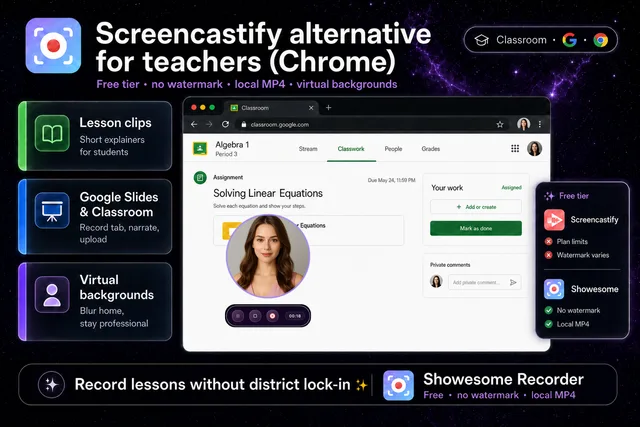
Screencastify alternative for teachers (Chrome)
When district Screencastify limits bite — free Chrome recording, no watermark, local MP4, virtual backgrounds.
GuidesBeginner5 min readFeature Guide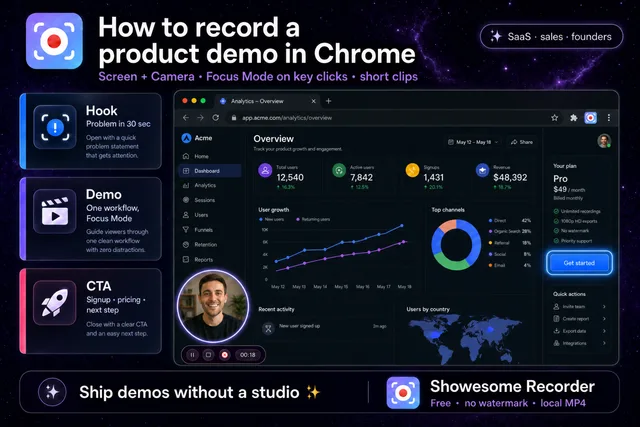
How to record a product demo in Chrome
Screen + Camera → share your app tab → Focus Mode on key clicks → export MP4 clips.
GuidesBeginner5 min readFeature Guide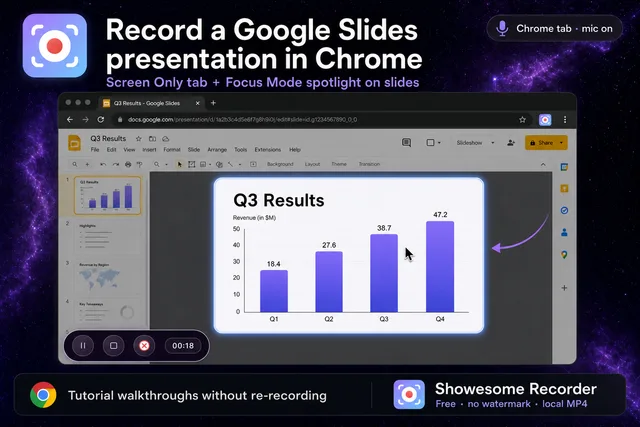
How to record a Google Slides presentation in Chrome
Open Slides → Screen Only tab → narrate → Focus Mode on key slides → export MP4.
GuidesBeginner5 min readFeature Guide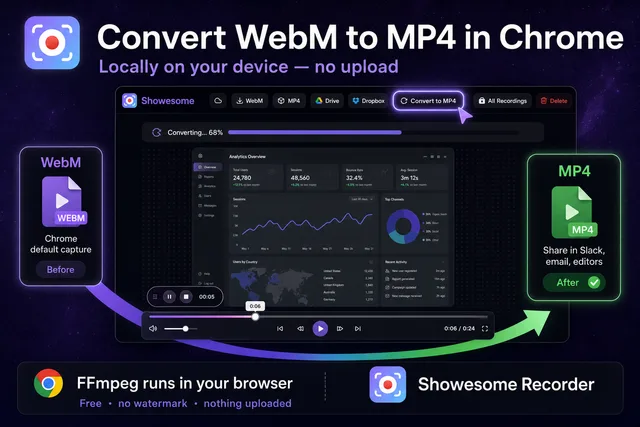
How to convert WebM to MP4 in Chrome (locally, no upload)
WebM → preview → Convert to MP4 → Download — all local in Chrome.
GuidesBeginner5 min readFeature Guide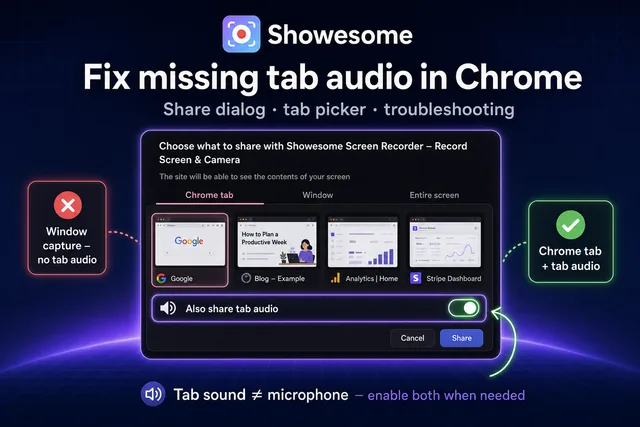
Share tab audio missing in Chrome? Fix tab recording (2026)
Tab audio troubleshooting — share dialog fixes, window vs tab, mute, DRM, and recording a Chrome tab with sound.
GuidesBeginner7 min readFeature Guide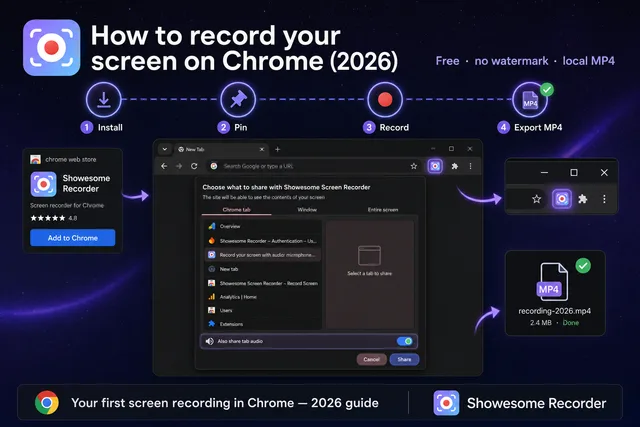
How to record your screen on Chrome (2026)
Install Showesome → pin the icon → Start Recording → pick what to share in Chrome → export MP4.
GuidesBeginner6 min readFeature Guide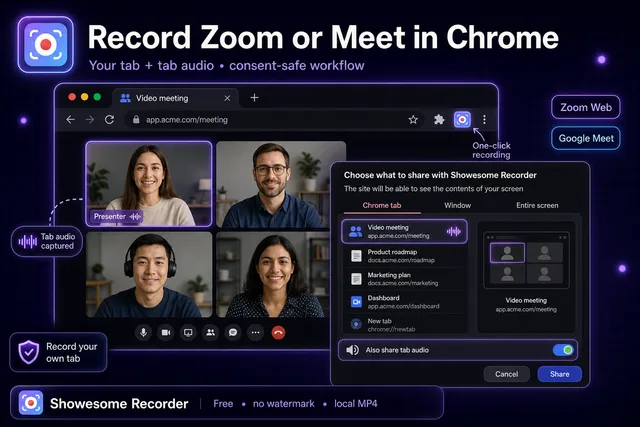
How to record Zoom or Google Meet in Chrome (your own tab + audio)
Record your own Meet/Zoom tab in Chrome with audio, plus consent-safe do's and don'ts.
GuidesBeginner4 min readFeature Guide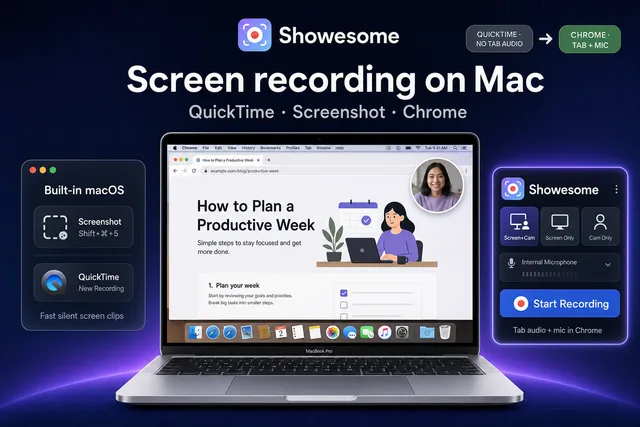
How to screen record on Mac (2026)
Mac screen recording — QuickTime & Screenshot vs Chrome/Showesome for tab audio, webcam bubble, and local MP4 export.
GuidesBeginner7 min readFeature Guide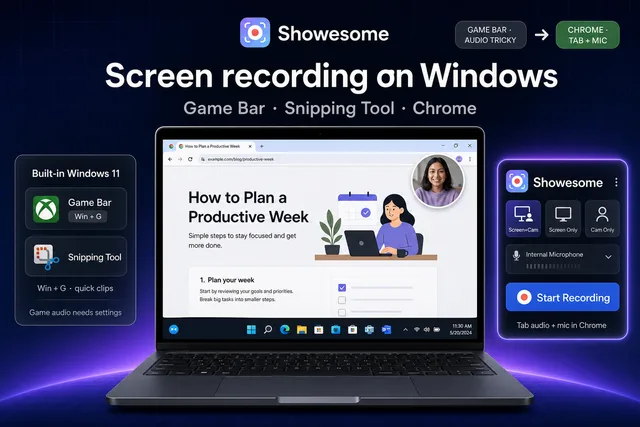
How to screen record on Windows 11 (2026)
Windows 11 screen recording — Game Bar & Snipping Tool vs Chrome/Showesome for tab audio, webcam bubble, and local MP4 export.
GuidesBeginner8 min readFeature Guide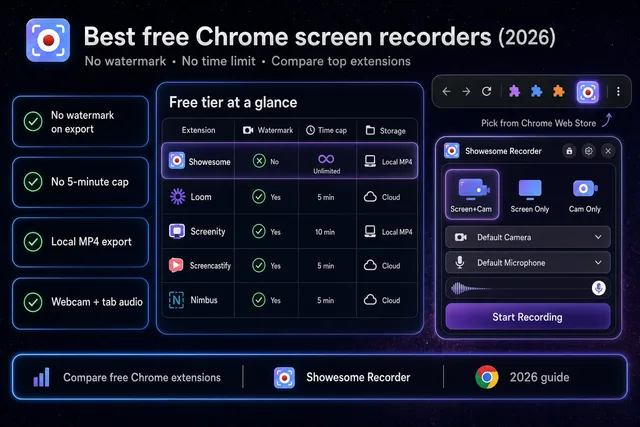
Best free Chrome screen recorder (2026) — no watermark, no time limit
Seven popular Chrome recorders compared — free tiers, watermarks, time caps, and who each tool is actually for.
GuidesBeginner9 min readFeature Guide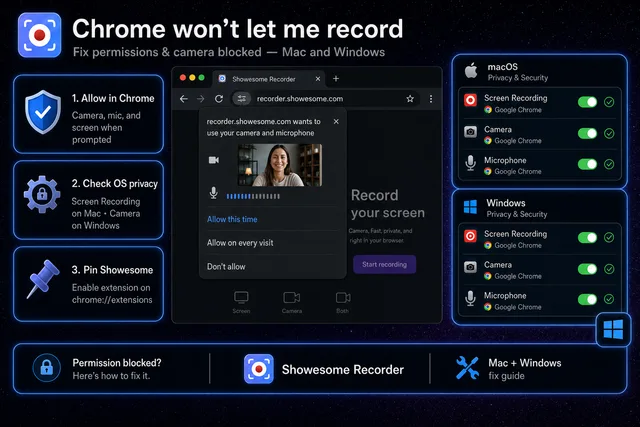
Chrome won't let me record — fix permissions & camera blocked (Mac and Windows)
Permission denied, black camera, or share dialog missing — symptom → fix for Mac, Windows, and Chrome.
GuidesBeginner7 min readFeature Guide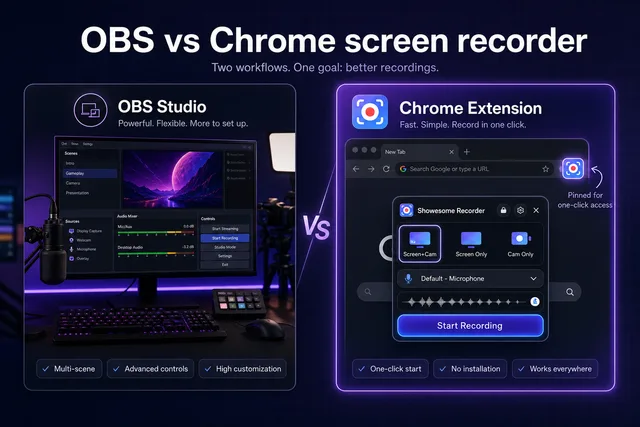
OBS vs Chrome screen recorder — which should you use?
OBS for streams and multi-scene production; Chrome extensions for fast web tutorials — honest side-by-side.
GuidesBeginner7 min readFeature Guide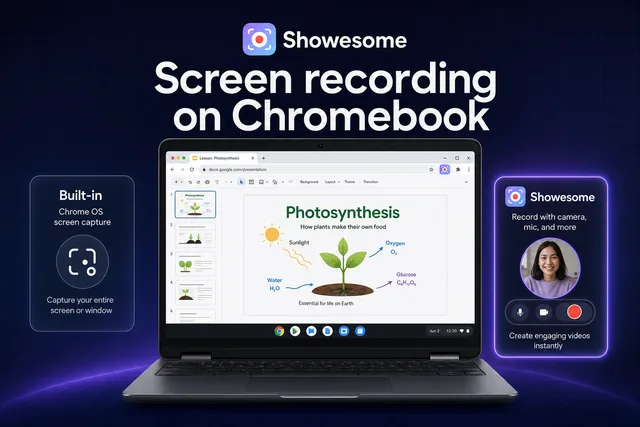
How to record your screen on a Chromebook (2026)
Chromebook screen recording — built-in shortcut vs Showesome for webcam, tab audio, Focus Mode, and local MP4 export.
GuidesBeginner6 min readFeature Guide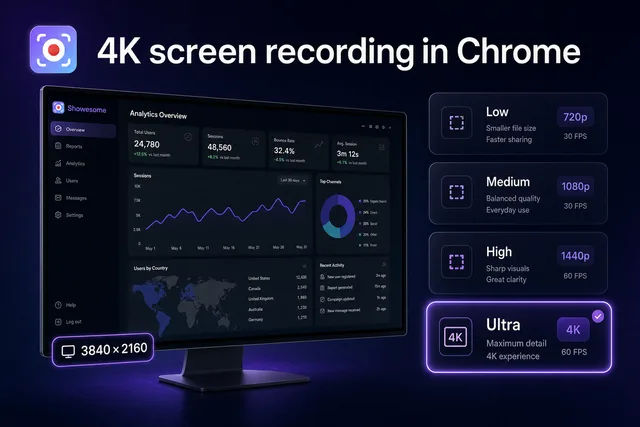
4K screen recording in Chrome — what actually matters
Native display resolution vs bitrate presets — when 4K helps, when Medium is smarter, and what Chrome can actually capture.
GuidesBeginner6 min readFeature Guide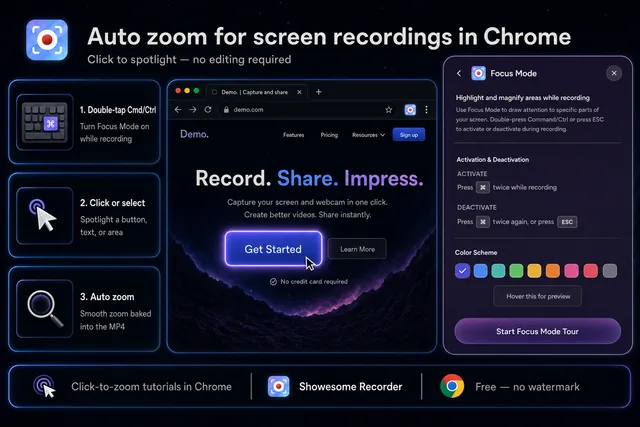
Auto zoom for screen recordings in Chrome (without editing)
Double-tap Cmd/Ctrl, click what matters, and Showesome auto-zooms in the recording — no editor required.
GuidesBeginner6 min readFeature Guide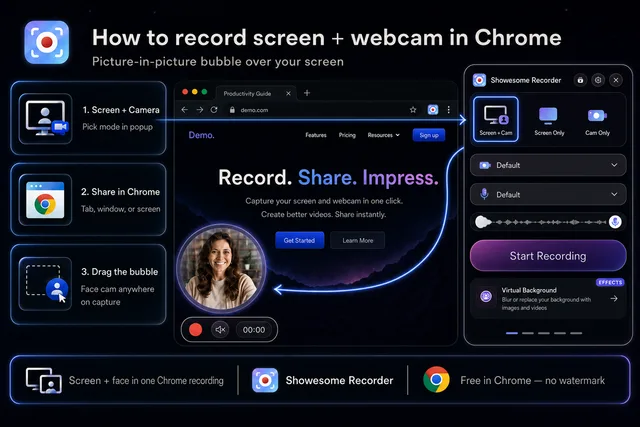
How to record screen + webcam in Chrome (picture-in-picture bubble)
Screen + Camera in the popup, Chrome share dialog, draggable webcam bubble — no OBS required.
GuidesBeginner6 min readFeature Guide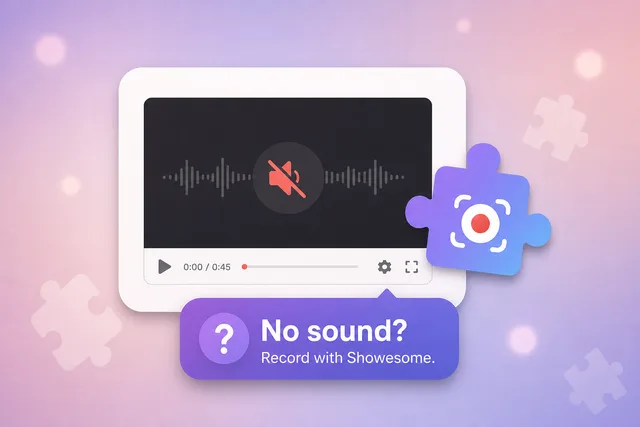
Screen recording has no sound? Fix it fast (Mac, Windows, and Chrome)
Mic off, tab audio unchecked, or system audio not captured — find which one in 30 seconds and fix it.
GuidesBeginner7 min readFeature Guide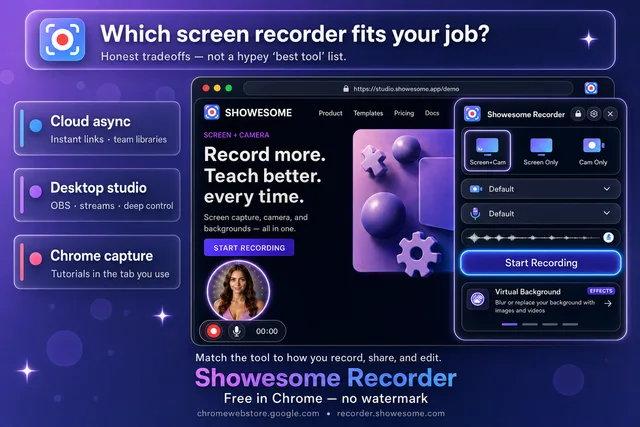
Which screen recorder is right for you? An honest look at popular options
Match the recorder to the job — cloud async, desktop production, or in-browser tutorials — without a hypey “best tool” list.
GuidesBeginner11 min readInsight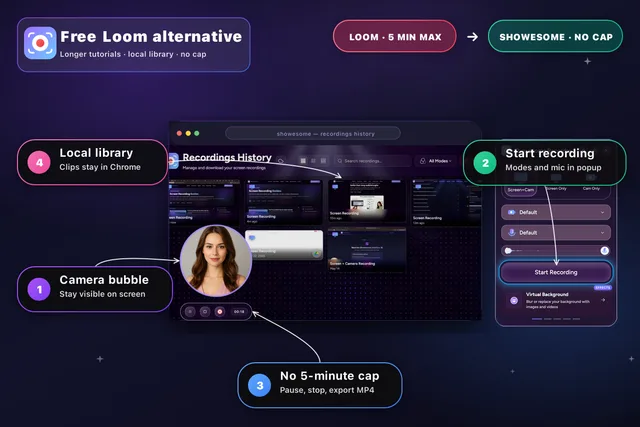
Free Loom alternative for Chrome: longer screen recordings without the 5-minute cap
Record longer Chrome tutorials locally — no Loom Starter time cap, no watermark, and share when you are ready.
GuidesBeginner7 min readFeature Guide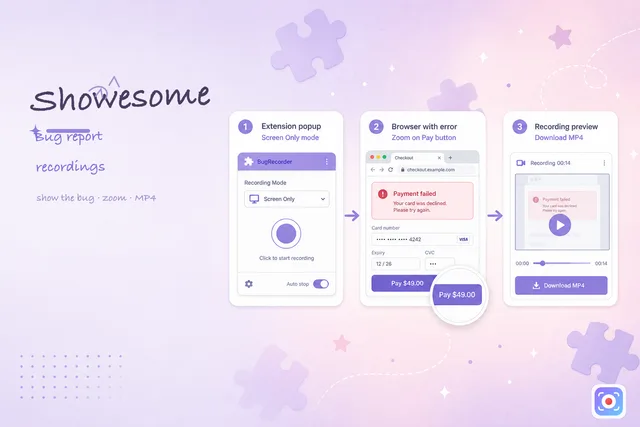
How to record a screen recording bug report in Chrome
Show steps, expected vs actual, and the error state in a short MP4 — faster than screenshot threads.
GuidesBeginner6 min readWorkflow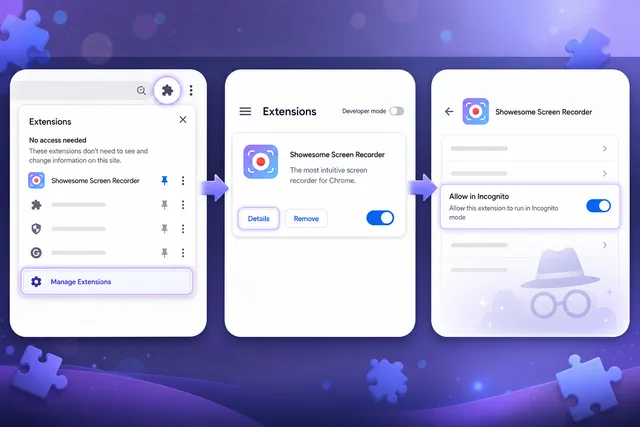
Use Showesome in Incognito mode
chrome://extensions → Showesome Details → Allow in Incognito (off by default).
GuidesBeginner3 min readFeature Guide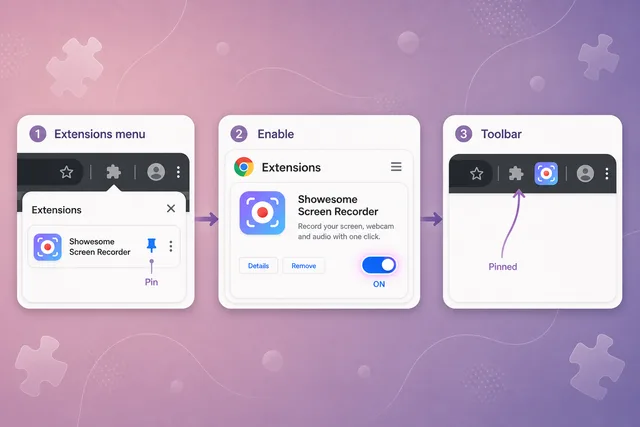
Can't find Showesome? Enable the extension and pin it in Chrome
Extensions menu → Manage Extensions → enable Showesome → pin from the puzzle icon.
GuidesBeginner4 min readFeature Guide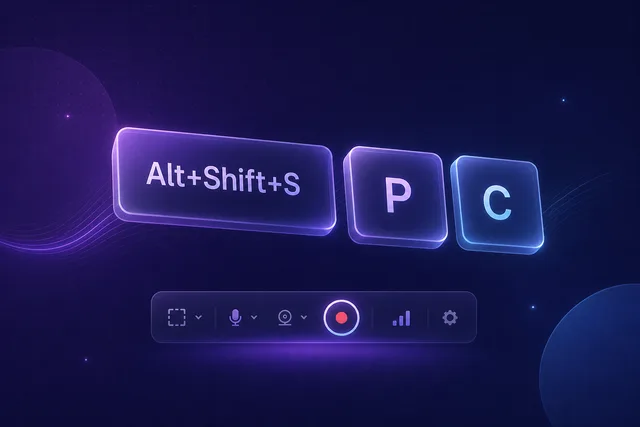
Keyboard shortcuts: record without touching the controls
Start, pause, and stop from any tab — or hide the control bar and record with shortcuts only.
GuidesBeginner7 min readFeature Guide
Record your screen with audio: microphone, mute, and tab sound
Pick your mic in the popup, toggle mute when you need to, and enable tab audio in Chrome’s picker for screen recordings with sound.
GuidesBeginner5 min readFeature Guide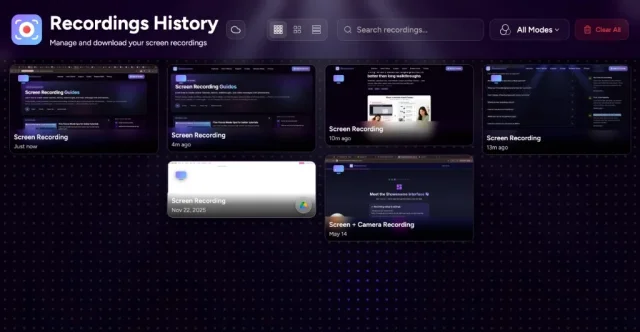
Your recordings library: stats, search, and three views
Statistics in the popup, full library in a tab — Compact, Large, or List view plus search and mode filters.
GuidesBeginner5 min readFeature Guide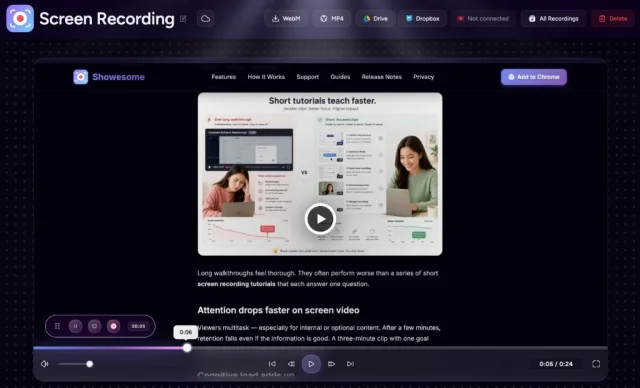
Preview, export, and optional cloud backup for your recordings
Preview plays in-browser, MP4 converts on your device — cloud upload is optional, never required.
GuidesBeginner6 min readFeature Guide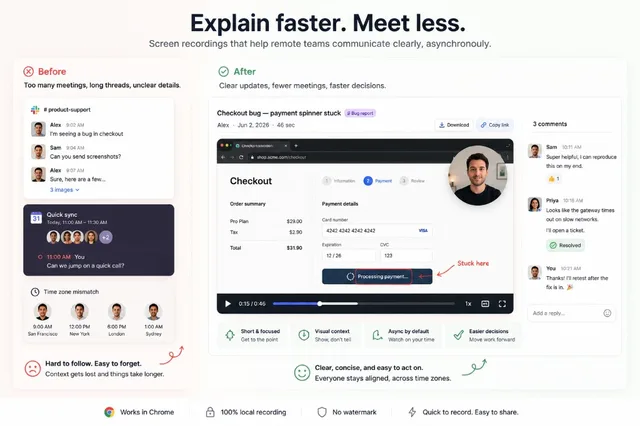
Screen recording tips for remote teams
Screen recording habits that help remote teams communicate clearly without another meeting.
Creator TipsBeginner3 min readWorkflow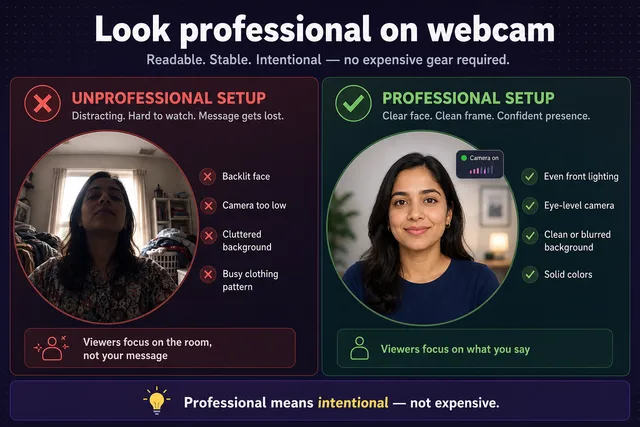
How to look more professional on webcam recordings
Look more professional on webcam with lighting, framing, blur, and a quick preview before you record.
GuidesBeginner2 min readFeature Guide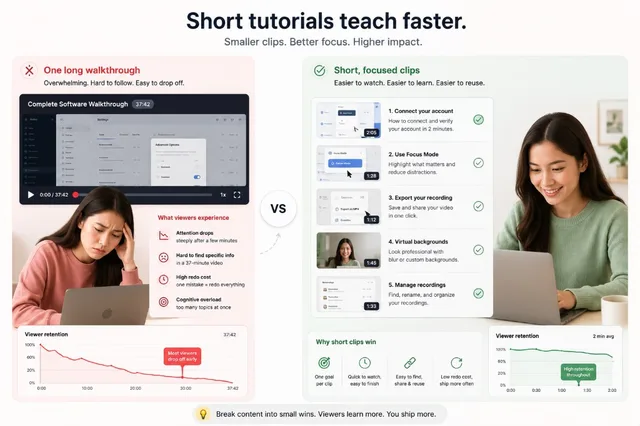
Why short tutorial clips perform better than long walkthroughs
Modular tutorial clips reduce cognitive load, improve completion, and are faster for creators to fix and ship.
Creator TipsBeginner3 min readTips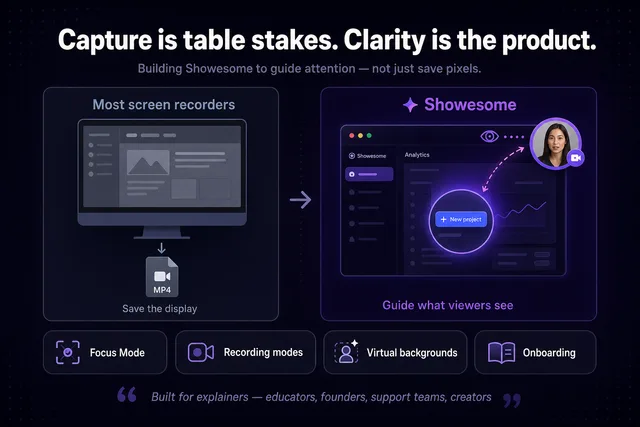
Building a screen recorder that guides attention instead of just capturing screens
We built Showesome to guide attention during capture — not just save pixels to a file.
Behind the BuildIntermediate3 min readInsight
How creators keep tutorials engaging without heavy editing
Keep viewers watching with pacing, focus, and shorter sections — not a heavy editing pipeline.
Creator TipsBeginner2 min readTips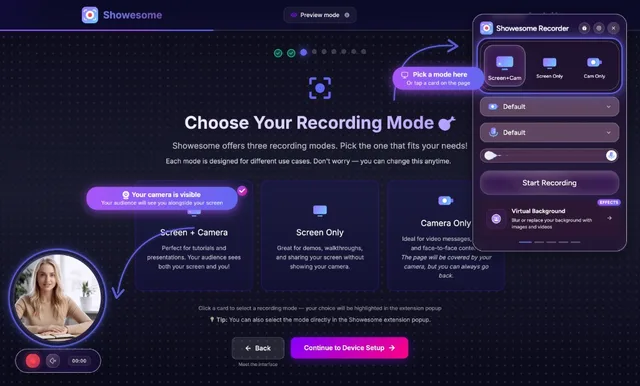
How to record a Chrome tab with audio
Record a Chrome tab with sound — enable tab audio, pick a mode, and export MP4 locally.
GuidesBeginner4 min readFeature Guide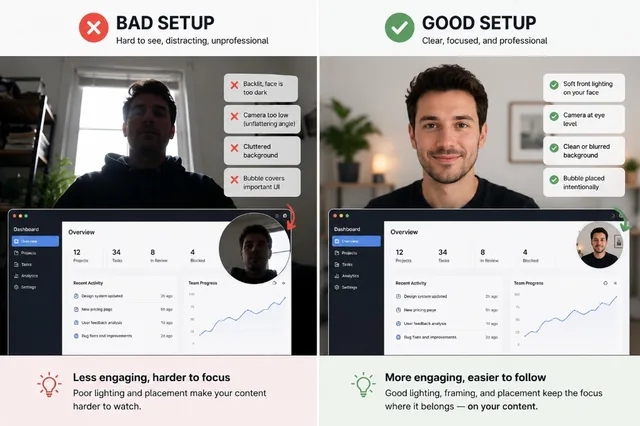
Best webcam setup for tutorial videos
Small setup changes help tutorial creators look clear and trustworthy on webcam recordings.
GuidesBeginner3 min readFeature Guide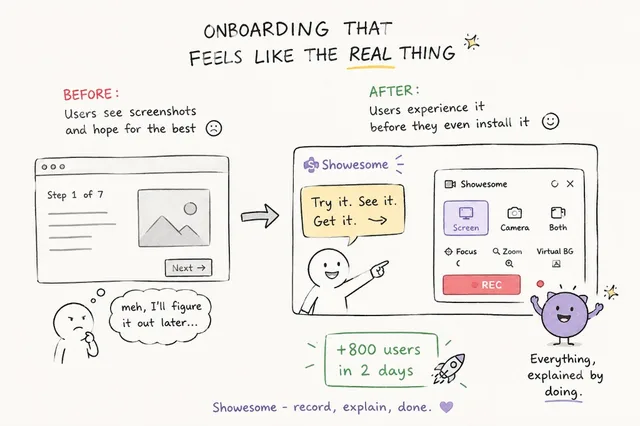
The onboarding change that helped users find more features
Interactive onboarding helped users find Focus Mode, backgrounds, and settings they had been missing.
Behind the BuildIntermediate3 min readStory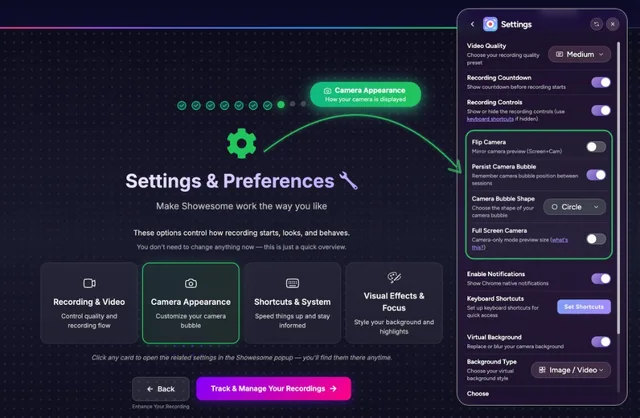
Why discoverability matters more than simplicity in product UX
Users miss features when they cannot find them — why discoverability beat minimal UI for us.
Behind the BuildIntermediate3 min readInsight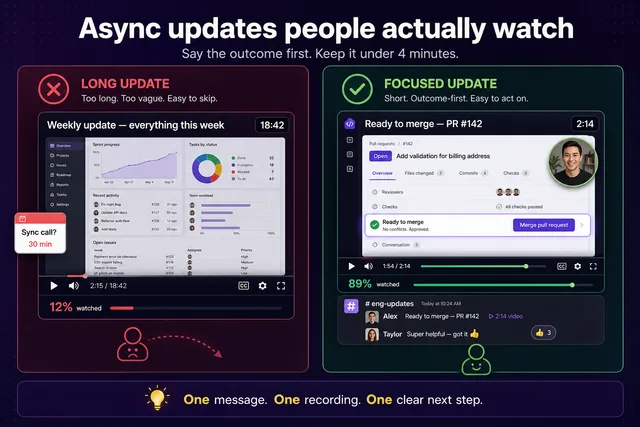
How to make async video updates your team actually watches
Create async updates people actually finish — with shorter clips, clearer focus, and intentional webcam presence.
Creator TipsBeginner3 min readWorkflow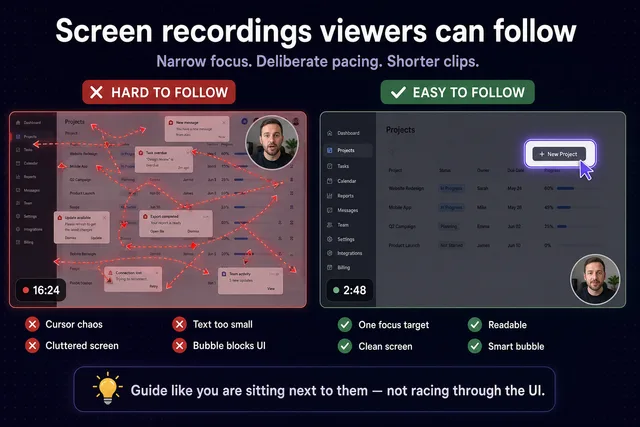
Common mistakes that make screen recordings hard to follow
Fix cursor chaos, tiny text, and cluttered screens so viewers can actually follow your recording.
Creator TipsBeginner3 min readTips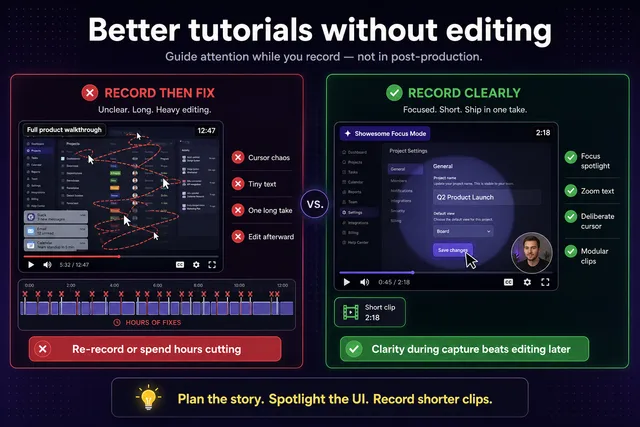
How to record better software tutorials without editing
Record clearer tutorials in one take with focus, pacing, and intentional camera use — not hours of post-production.
TutorialsBeginner3 min readTutorial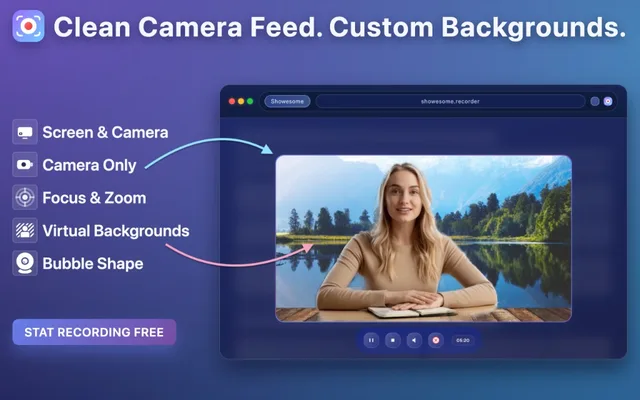
Virtual backgrounds: blur, gallery backgrounds, and live preview
Learn when to use blur or virtual backgrounds for cleaner, more professional recordings.
GuidesBeginner4 min readFeature Guide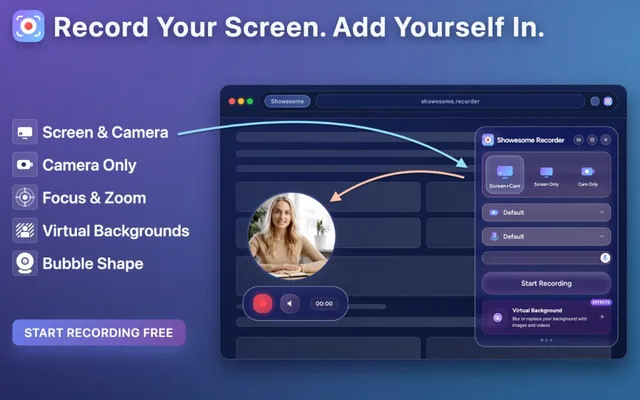
Screen + Camera or screen only? Choosing a recording mode
Pick the right mode for tutorials, demos, or face-to-camera clips — screen + camera, screen only, or camera only.
GuidesBeginner4 min readFeature Guide