How to look more professional on webcam recordings
Lighting, posture, backgrounds, and framing for professional-looking webcam clips in tutorials and async video.
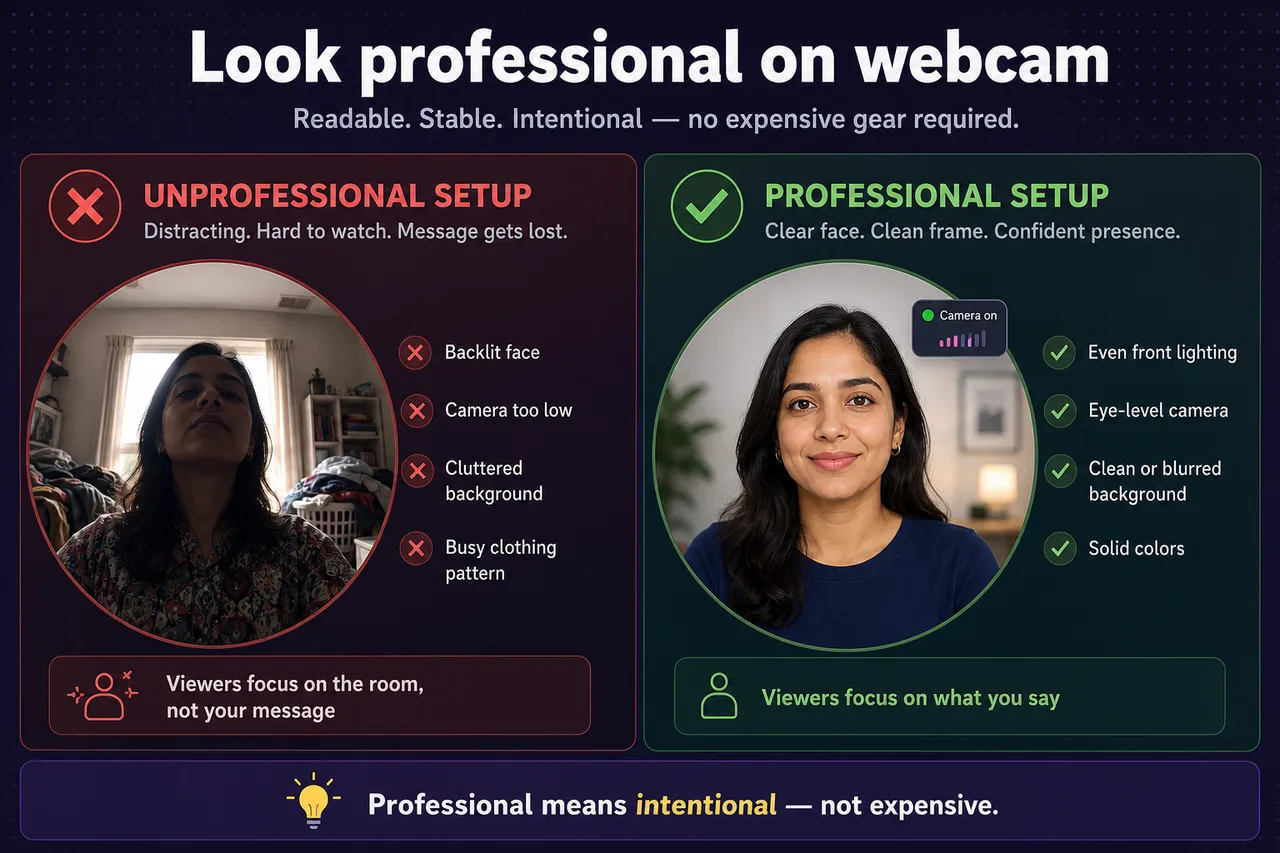
“Professional” on webcam does not mean expensive gear. It means readable, stable, and intentional — viewers should focus on your message, not your messy shelf.
Even lighting on your face
Face a window or use a lamp in front of you. Avoid ceiling-only light that casts shadows under your eyes, and avoid strong light behind you.
Stable camera and posture
Sit tall, look at the lens, and keep the camera still. Shaky laptop movement reads as nervous or low effort.
Clean up the background — or blur it
Tidy what is in frame, or use webcam blur and virtual backgrounds. Preview in the bubble before recording so you are not surprised after export.
Dress for contrast
Solid colors read better than busy patterns on video. You do not need a suit — just avoid merging into the wall behind you.
Match format to context
Screen + Camera for demos where presence helps. Camera Only for quick updates. Full-screen camera for formal intros. Recording modes cover when to use each.
Record short, review once
A sixty-second test clip reveals lighting and audio issues faster than fixing a ten-minute take.
Do I need expensive gear to look professional on webcam?
No — lighting and framing matter more than camera price. Face a window or soft lamp, raise the camera to eye level, and record a ten-second test clip before the real take.
Can I blur my background during a screen recording?
Yes in Screen + Camera and Camera Only. Enable virtual backgrounds — blur or gallery images — in extension settings.
Which recording mode should I use for a professional intro?
Camera Only for a talking-head intro; Screen + Camera when you explain a product on screen with your face visible in the bubble.
Related reading
Was this guide helpful?
One vote per browser. No account required.
Be the first to share feedback.
Comments
Join the discussion — comments are moderated to keep things helpful. Be respectful and constructive.
Preparing sign-in…