Virtual Background Tutorial
Interactive demoBlur, gallery backgrounds, and camera layouts — in your browser.
Step 1 of 7
Welcome
Good to have you here — virtual backgrounds help your recordings look polished, without needing a studio setup.
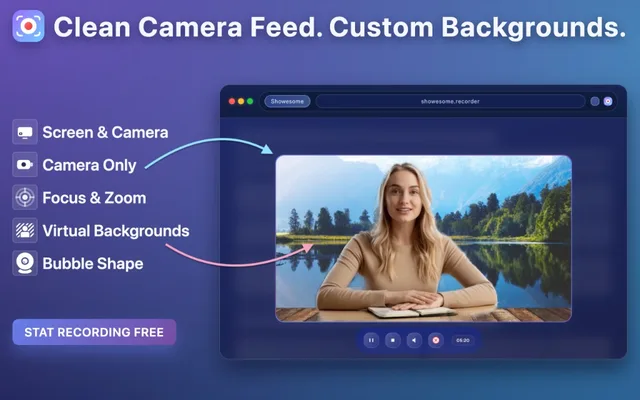
Blur your webcam or pick from 8+ gallery backgrounds. On the next step, choose a demo video or your webcam for the live previews, then use Next to try each effect.
Set up in the extension
- Open the Showesome popup in Chrome.
- Go to Settings and enable Virtual Background.
- Open the Background Gallery to choose blur or a background.
What this tour covers
- BlurDepth-of-field on your camera
- ImagesStill backgrounds from the gallery
- VideoLooping video backgrounds
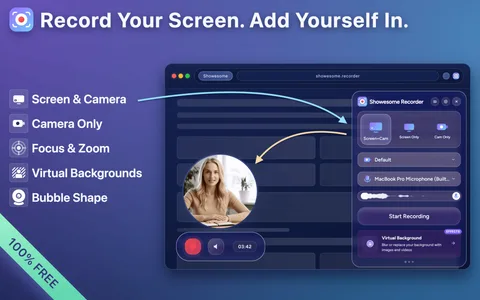
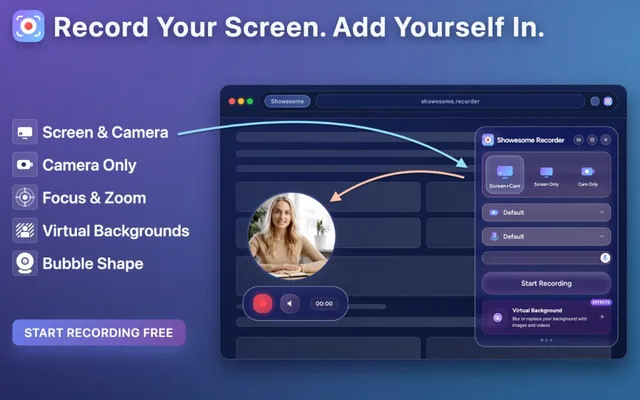
- BubbleScreen + Camera PiP preview
- Full screenCamera-only full-frame preview
Recording modes
Available in Screen + Camera and Camera Only. Screen Only has no webcam layer, so backgrounds do not apply.