Your recordings library: stats, search, and three views
Open Recordings History from the popup — see weekly statistics first, then search, filter by mode, and browse in Compact, Large, or List view.
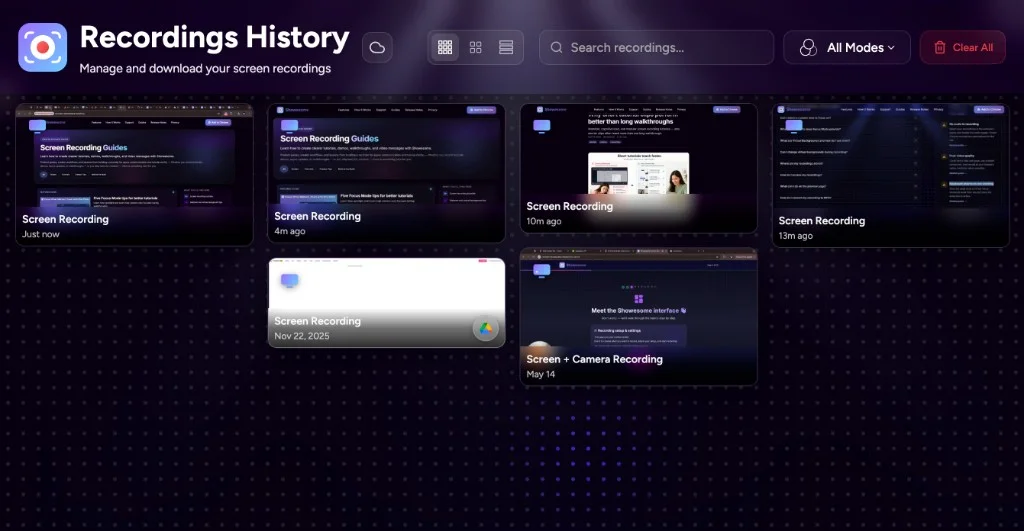
Every clip you record is saved automatically in Chrome on your device — it appears in Recordings History without you having to export to your Downloads folder first. You never need a Showesome account or cloud drive for the extension to work.
This is part one of the recordings series: how to open your library, read recording statistics in the popup, and browse Recordings History using Compact, Large, or List view. Part two covers preview, MP4 export, and optional cloud backup.
Two ways to open Recordings History
Fast path — header button
- Click the Showesome icon in the Chrome toolbar.
- On the main popup, click the recordings icon in the header (tooltip: View Recordings).
- Chrome opens Recordings History in a new tab.
Stats first — feature carousel
- Open the popup (main view).
- In the bottom feature carousel, swipe to the RECORDINGS card (“View statistics and manage your recordings”).
- The popup switches to the Recordings view — totals, breakdown, storage, and recent clips.
- Tap View All & Manage for the same Recordings History tab.
New to Showesome? Getting Started step 8 — Track & Manage Your Recordings highlights this path live so you are not hunting for the right carousel row.
What the statistics panel shows
Your recording activity overview before you open the full library — totals, weekly activity, mode breakdown, storage, and quick links to recent clips. Open this view anytime, even before your next recording, to check space or reopen a recent clip.
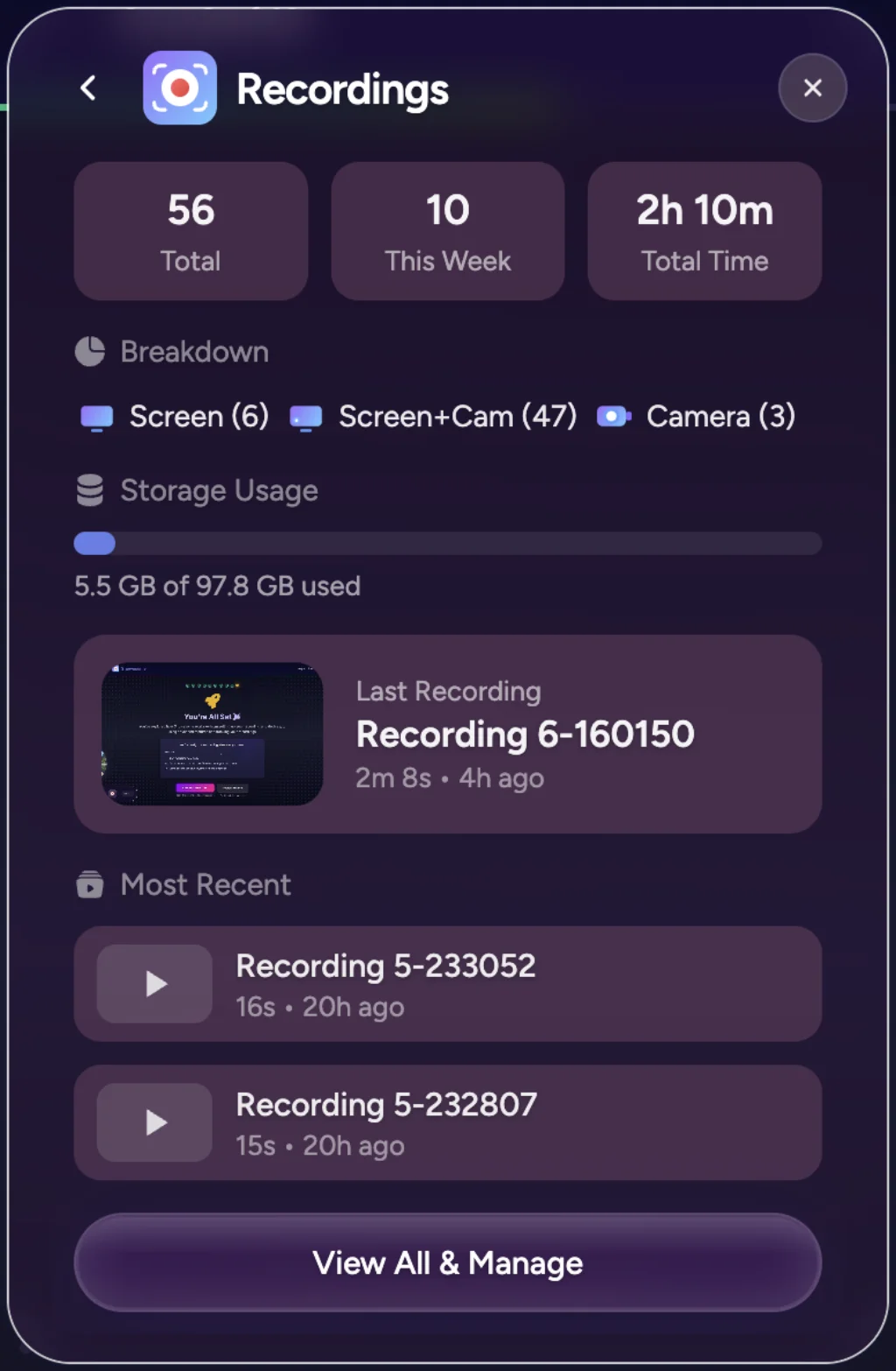
What each block means
| Block | What you learn |
|---|---|
| Total | How many recordings are in your library |
| This Week | Activity in the last seven days |
| Total Time | Combined duration across all clips |
| Breakdown | Counts by mode — Screen, Screen + Camera, Camera |
| Storage Usage | Chrome quota used (progress bar + “X of Y used”) |
| Last Recording | Thumbnail, title, duration, date — tap to open preview |
| Most Recent | Up to two more quick-open entries |
Recordings History — search, filter, and views
Recordings History gives you one place to search, organize, preview, export, and remove recordings. In the extension, the page subtitle is Manage and download your screen recordings. Clips stay in your Showesome library in Chrome until you delete them, clear all, or Chrome removes the extension’s saved data.
Find a clip
- Search — “Search recordings…” filters by title.
- Filter by mode — All Modes, Screen Only, Camera Only, Screen + Camera.
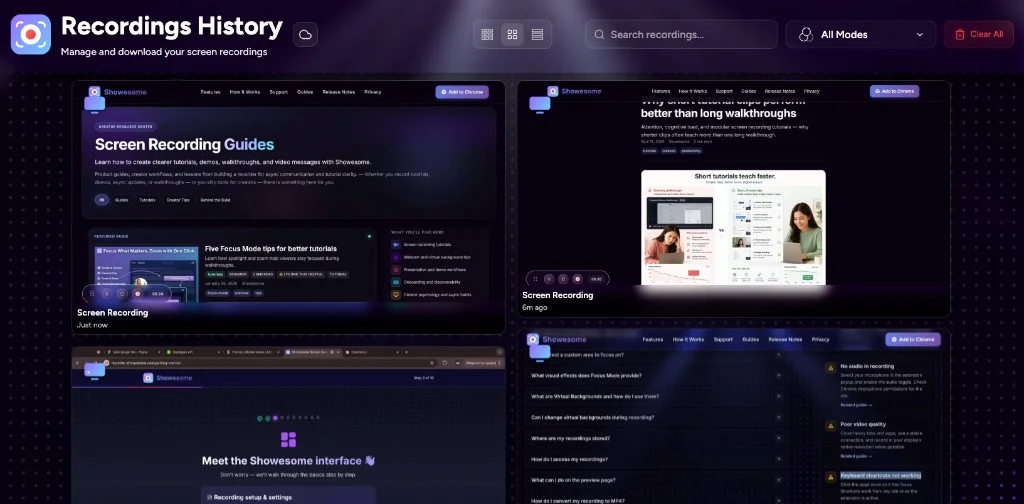
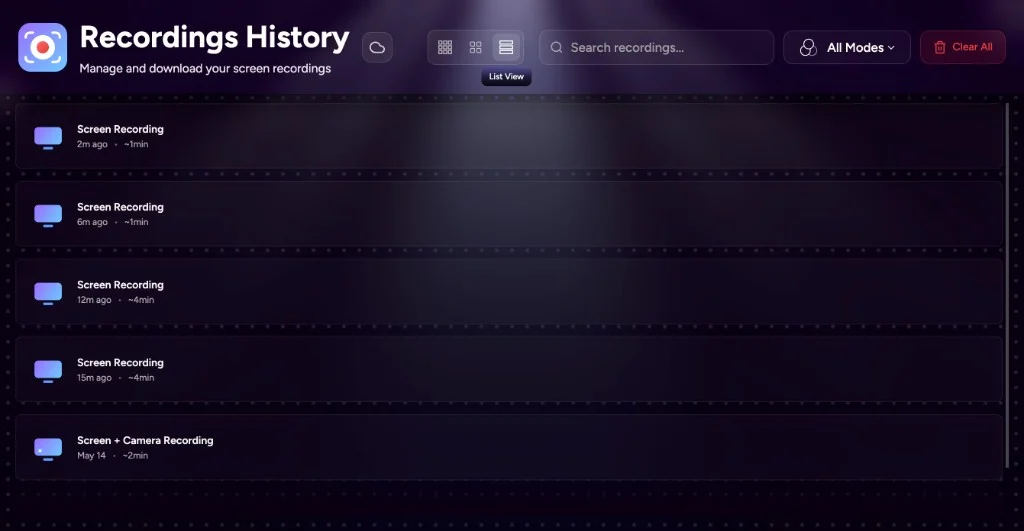
Three layouts (toolbar icons — same labels as in the extension):
From each tile or row you can
- Open preview (watch before you export).
- Download WebM or Convert / Download MP4 — export an extra copy to your computer (the recording is already in your library).
- Delete one clip, or Clear All with confirmation.
The cloud icon in the header opens optional upload settings — you can ignore it entirely and keep everything local.
Where your recordings live
When a recording finishes, it is already stored inside Chrome on your device and listed in Recordings History. You only need Download MP4 or Download WebM if you want a separate file in your Downloads folder or another app.
Recordings stay there until you delete them in Showesome or Chrome clears the extension’s saved data — for example after uninstalling the extension or clearing its storage. If storage gets tight, Showesome may trim older clips at high usage (see the FAQ on storage limits). Showesome does not host your videos — capture and the library run in your browser.
Where are Showesome recordings stored?
Locally in Chrome — Recordings History in the extension. Clips stay on your device until you export or optionally upload to cloud services.
How do I search or filter clips in Recordings History?
Use search and the Compact, Large, or List views in the library popup. Stats at the top show total clips and storage used in Chrome.
Do I need a Showesome account to use the recordings library?
No account required for local library and MP4 export. Optional cloud connections use your Google, Dropbox, or YouTube accounts when you choose to upload.
Quick checklist
- Record at least one clip.
- Popup → RECORDINGS card for stats, or header icon for the library.
- Try Search and Filter by mode once you have several clips.
- Switch Compact, Large, and List to find the layout you prefer.
- Continue to preview & optional cloud when you are ready to export or back up.
Related reading
- Preview, export, and optional cloud backup — part two of the recordings series.
- Getting Started — step 8 walkthrough.
- Choosing a recording mode.
- Keyboard shortcuts guide.
- Support — FAQs and troubleshooting for Recordings History, preview, and export.
Was this guide helpful?
One vote per browser. No account required.
Be the first to share feedback.
Comments
Join the discussion — comments are moderated to keep things helpful. Be respectful and constructive.
Preparing sign-in…