Five Focus Mode tips for better tutorials
Use spotlight, zoom, and keyboard shortcuts to keep viewers on what matters when recording tutorials with Showesome.
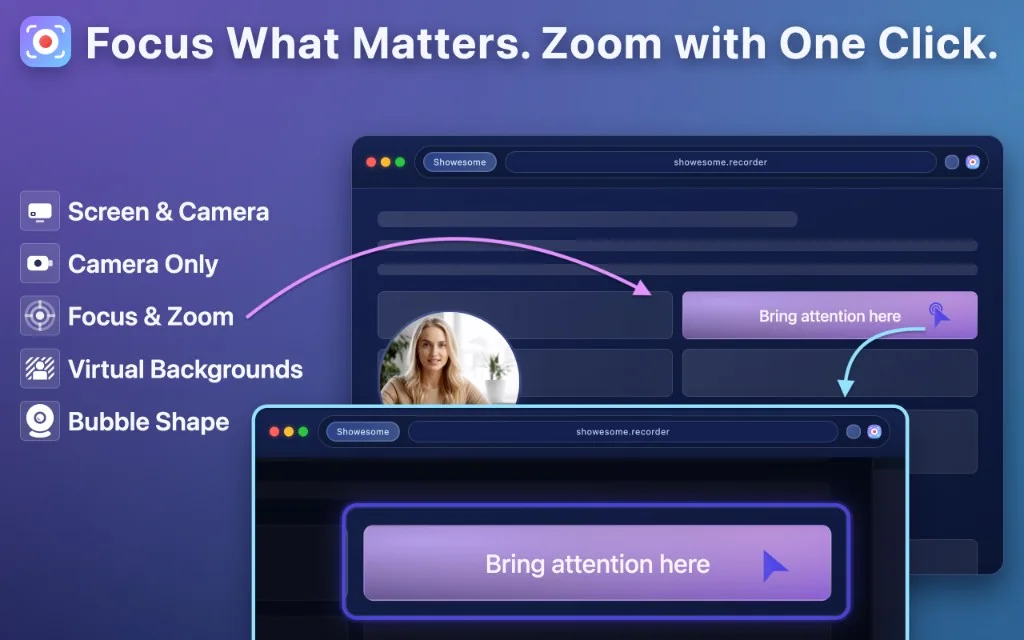
Focus Mode helps you guide attention during a recording without extra editing. You choose what matters—click a control, select text, or draw an area—and Showesome spotlights it and zooms automatically (many creators describe this as click-to-zoom or auto zoom for screen recordings). For a full walkthrough aimed at “auto zoom in Chrome,” see Auto zoom for screen recordings in Chrome. Here are five practical ways to use it when you explain software or walk through a workflow.
1. Double-tap to enter Focus Mode quickly
Double-tap Cmd (Mac) or Ctrl (Windows/Linux) to turn Focus Mode on or off. You stay in flow instead of hunting through menus while recording.
2. Spotlight UI elements, not the whole screen
With Focus Mode active, click an element to spotlight it. Viewers see the control or panel you mean, which is clearer than waving the cursor around a busy interface.
3. Zoom text for readability
Select text on the page to zoom in on labels, error messages, or settings values. Short clips of zoomed text often replace long verbal explanations.
Open on watch page (for search and full-screen viewing)
4. Use area spotlight for multi-step flows
Hold Shift and drag to draw a region when several controls work together — for example, a form section or a toolbar group. Area spotlight keeps context while still narrowing focus.
5. Plan exits before you record
Press ESC, or double-tap Cmd or Ctrl again, to leave Focus Mode. Practice that exit before you record so transitions back to full screen feel intentional.
What is Focus Mode in Showesome?
Click-to-zoom spotlight while you record. Double-tap Cmd (Mac) or Ctrl (Windows) to enter Focus Mode, then click UI elements, select text, or Shift-drag an area to highlight.
How do I zoom in on text while recording?
Select the text with Focus Mode active. Showesome auto-zooms on the selection — useful for docs, forms, and small labels.
Does Focus Mode work during Screen Only recordings?
Yes. Focus Mode spotlights the shared screen whether or not your camera bubble is visible.
Learn more
- Auto zoom for screen recordings in Chrome — canonical guide for click-to-zoom / Focus Mode search intent.
- Try the interactive Focus Mode tutorial in your browser.
- See the keyboard shortcuts guide for recording controls and hiding the control bar.
- How creators keep tutorials engaging without heavy editing — pacing, camera bubble, and Focus Mode in a creator workflow.
- Support — FAQs and troubleshooting for Focus Mode, shortcuts, and recording issues.
Was this guide helpful?
One vote per browser. No account required.
Be the first to share feedback.
Comments
Join the discussion — comments are moderated to keep things helpful. Be respectful and constructive.
Preparing sign-in…