Focus Mode Tutorial
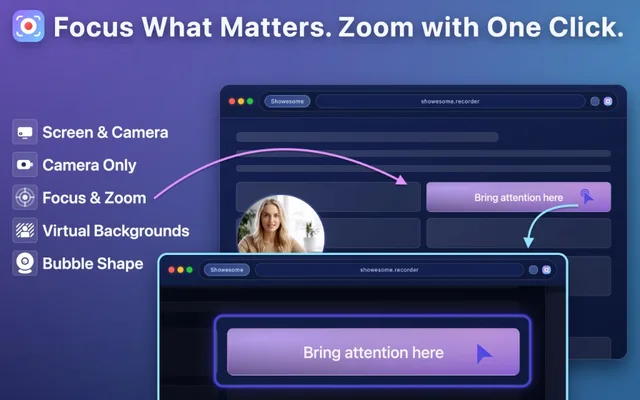
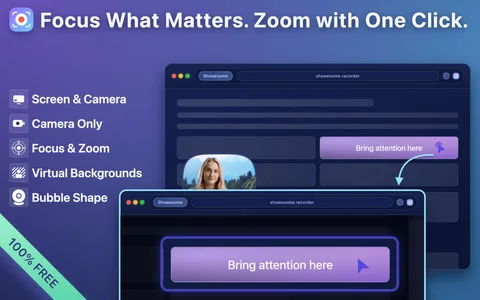
Interactive demoSpotlight, zoom, and color — try it in the sandbox below. Adjust theme and spotlight color in the toolbar above the demo.

Hover over elements to see the focus indicator, then click to zoom in. Hold Shift and drag to select an area.
How it works
Spotlight and zoom while you present. Use the sandbox above to practice, then turn it on during a real recording in Chrome.
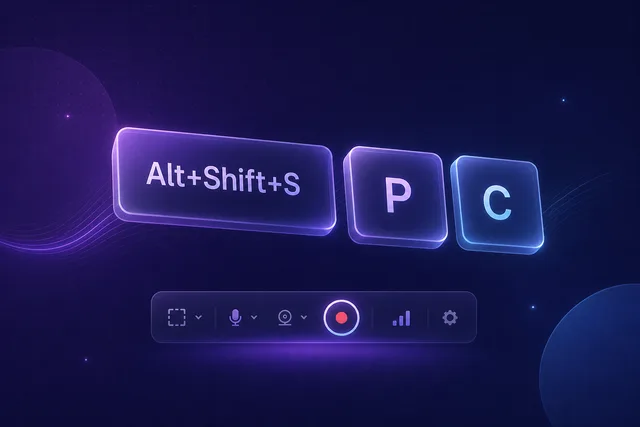
Toggle on / off⌘⌘orCtrlCtrl
Spotlight areaShift+drag
Exit focusEsc
In Chrome while recording
Showesome is active and your capture is already in progress — not from the popup before you record.
- Start your recording as usual (screen, window, or tab).
- Double-tap Cmd (Mac) or Ctrl (Windows/Linux), or tap the focus control on the recording UI.
- Match focus colors to your brand in Settings when you are ready.
In this sandbox
Same interactions as the extension — no recording required.
- HoverPreview the focus ring on elements
- ClickSpotlight and zoom one element
- Select textZoom readable copy
- Shift + dragDraw a custom spotlight region
- EscExit focus (or double-tap Cmd/Ctrl)