Can't find Showesome? Enable the extension and pin it in Chrome
Open Chrome's Extensions menu, use Manage Extensions to check that Showesome is enabled, then pin it from the puzzle icon so the toolbar icon stays visible.
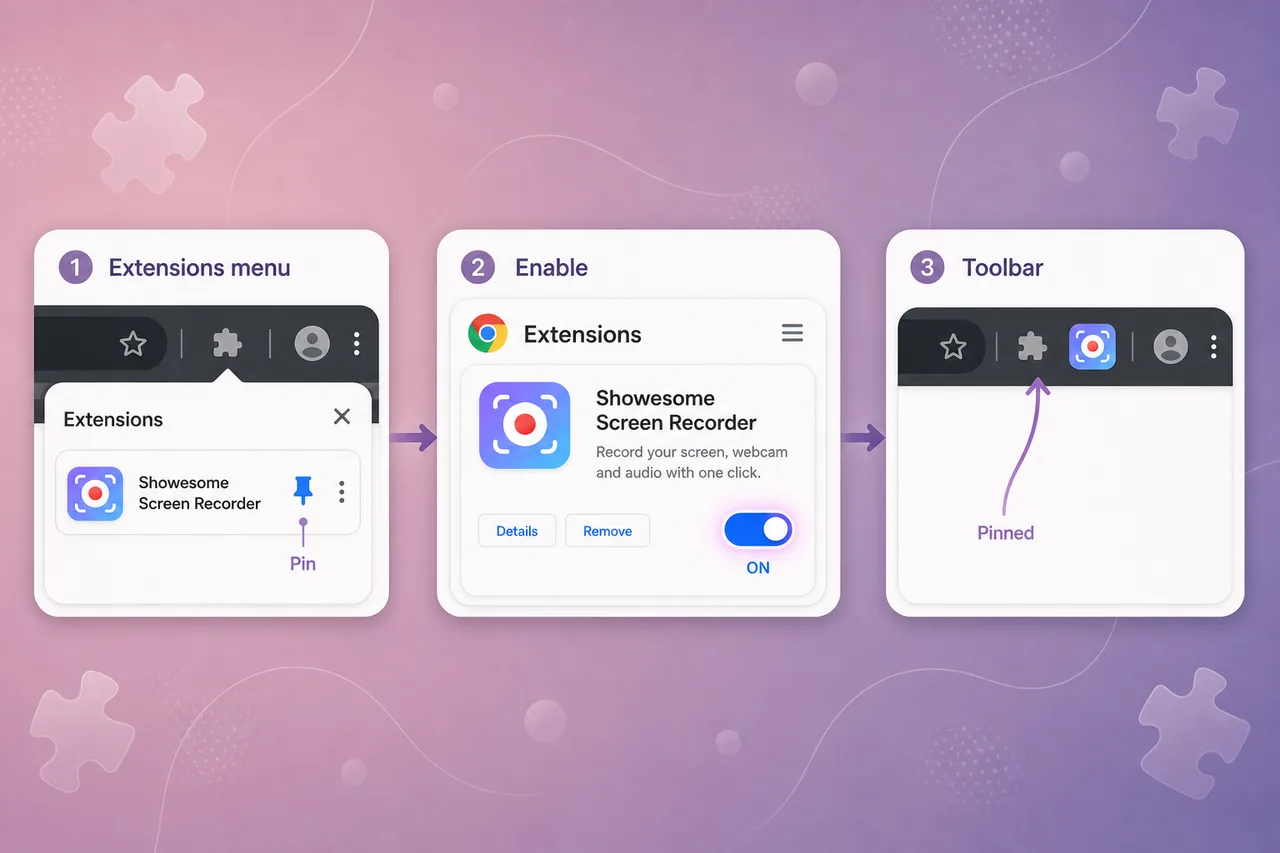
You installed Showesome, but the icon is not on the toolbar — or you only see it buried inside the Extensions menu. That is normal in Chrome until the extension is enabled and pinned.
This guide walks through the Extensions menu (puzzle icon), Manage Extensions (Chrome's full extension manager), and how to pin Showesome so one click opens the recorder.
Pinned and ready to record? Continue with how to record your screen on Chrome (2026).
Open on watch page (for search and full-screen viewing)
1. Open the Extensions menu
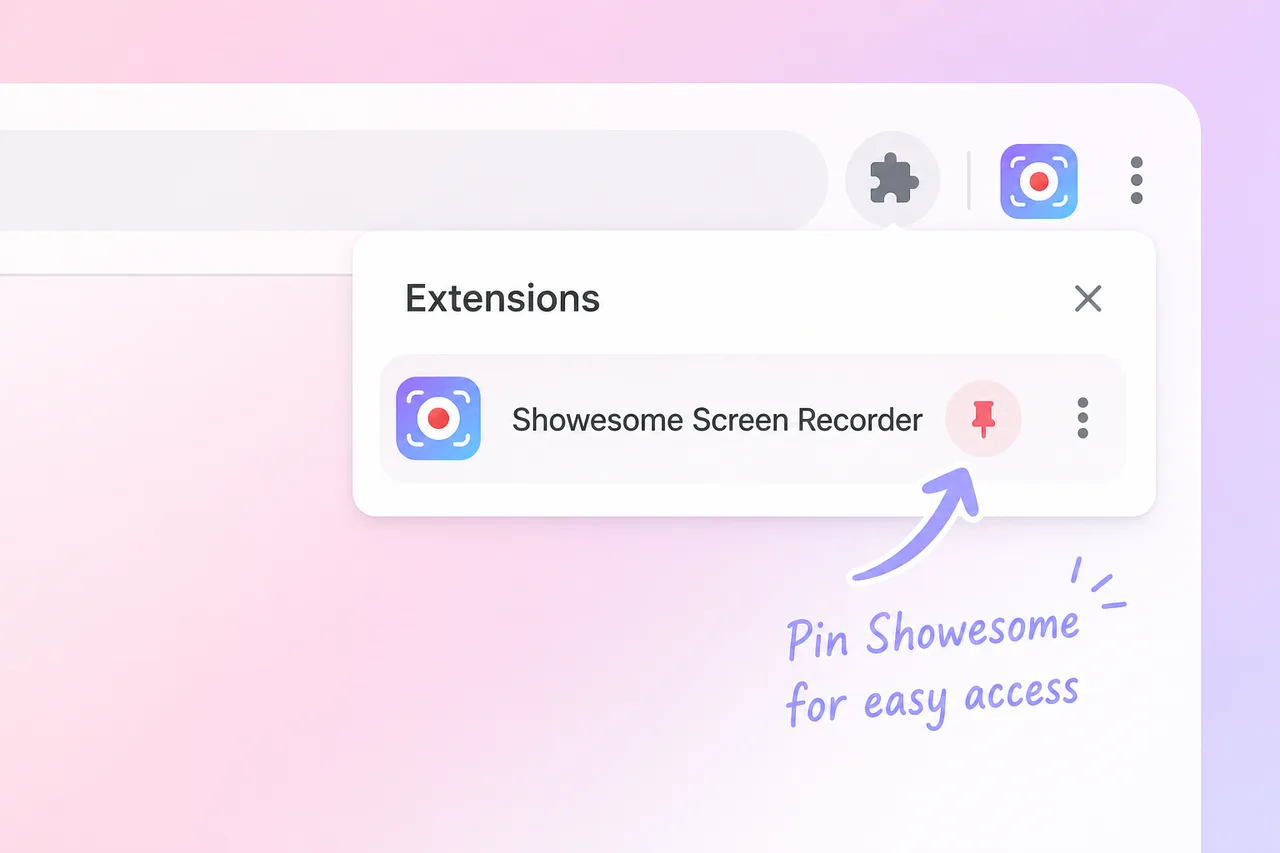
- Look at the top-right of Chrome, next to the address bar.
- Click the puzzle piece icon (Extensions).
You should see Showesome Screen Recorder in the list, plus actions like pin and, at the bottom, Manage Extensions.
2. Open Manage Extensions
To see whether Showesome is turned on, open Chrome's extension manager:
- In the same Extensions menu, scroll to the bottom.
- Click Manage Extensions (gear icon).
That opens chrome://extensions in a new tab — the full list of installed extensions.
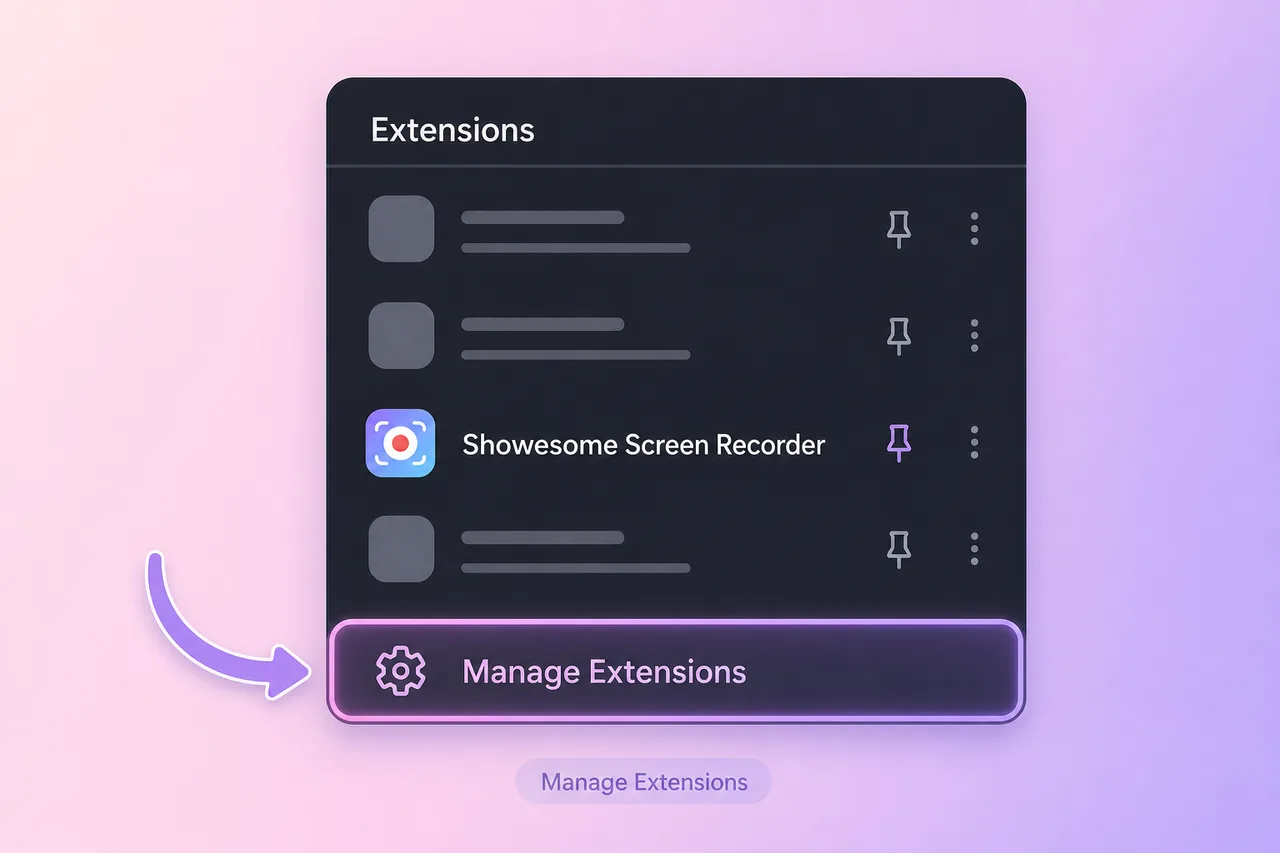
You can also paste chrome://extensions into the address bar anytime; Manage Extensions is just the quickest path from the menu.
3. Make sure Showesome is enabled
On the extensions page:
- Find Showesome Screen Recorder.
- Turn the switch on (blue, slider to the right) so the extension stays enabled.
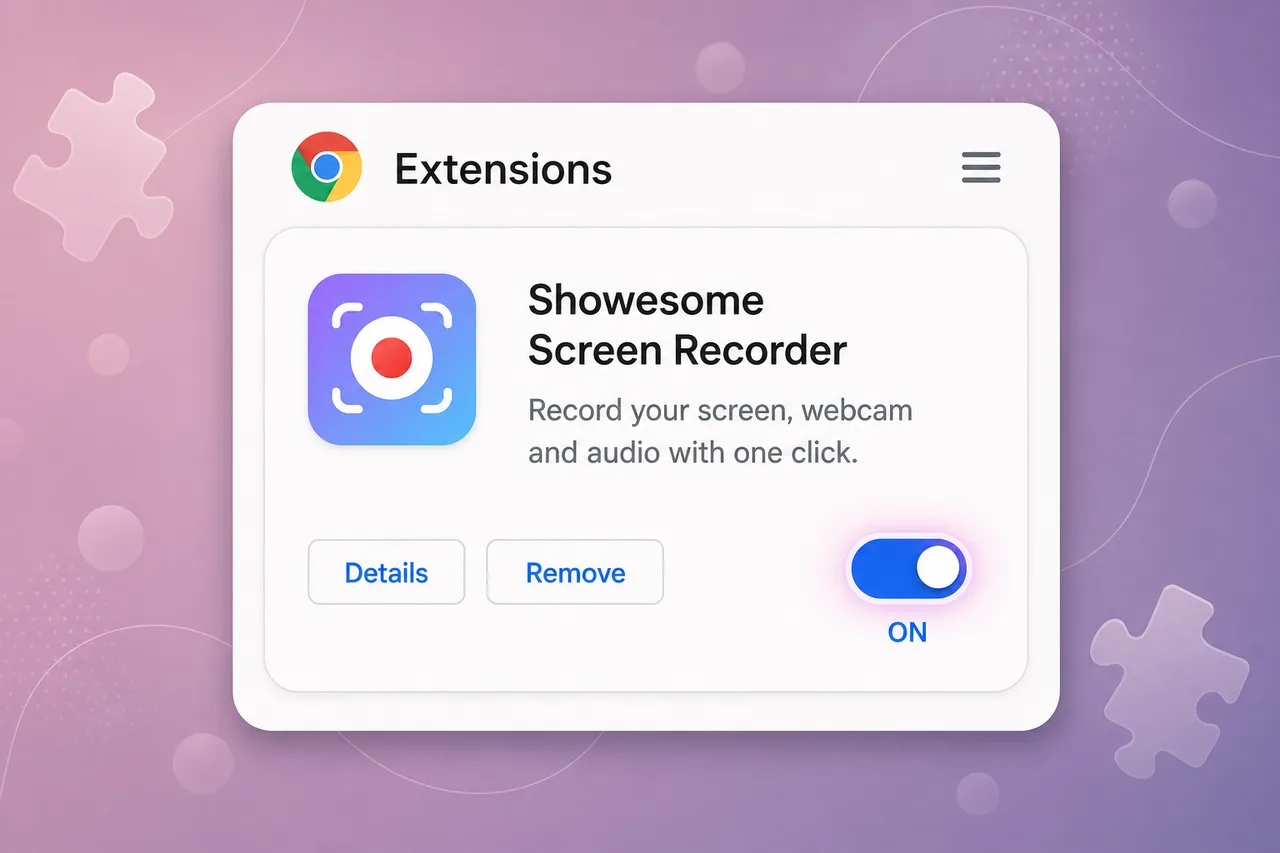
If Showesome is missing from the list, install it again from the Chrome Web Store — then repeat this step.
Tip: Click Details on the Showesome card to confirm permissions (screen, camera, microphone) are allowed when you record.
4. Pin Showesome to the toolbar
Even when an extension is enabled, Chrome may hide its icon until you pin it.
- Click the puzzle piece icon again (Extensions).
- Find Showesome Screen Recorder.
- Click the pin icon (pushpin) so it turns solid and the Showesome logo stays on the toolbar.
Use the same menu as in step 1 — pin is on the right side of the Showesome row.
After pinning, click the Showesome icon in the toolbar to open the recording popup — the same entry point as Getting Started step 1.
5. Still do not see the icon?
Try these quick checks:
- Permission denied when you start recording? See Chrome won't let me record — fix permissions.
- Incognito / private window? Chrome disables extensions in private browsing until you allow them. Open Details on the Showesome card and turn on Allow in Incognito — see Use Showesome in Incognito mode.
- Refresh the tab you are working in, or restart Chrome once.
- Confirm you are in Google Chrome (or another Chromium browser that supports Chrome extensions) — not Safari or Firefox.
- Check whether a work or school policy blocks extensions; IT-managed profiles sometimes hide or disable them.
- Reinstall from the Chrome Web Store if the extension card is missing from
chrome://extensions.
If the icon appears but recording will not start, see Support — permissions and device setup are covered there.
Why is the Showesome icon not on my Chrome toolbar?
The extension is installed but not pinned. Chrome hides new extensions in the puzzle menu until you pin Showesome to the toolbar for one-click access.
How do I open Manage Extensions from the puzzle icon?
Click the puzzle piece → Manage extensions, or go to chrome://extensions. Confirm Showesome is Enabled, then return to the puzzle menu and pin it.
Do I need to pin Showesome every time I open Chrome?
No — pin once and it stays. If the icon disappears after a Chrome update, open the puzzle menu and pin Showesome again.
Quick checklist
- Puzzle icon → open Extensions menu.
- Manage Extensions → open
chrome://extensions. - Showesome enabled (toggle on).
- Extensions menu again → Pin Showesome.
- Click the toolbar icon → choose a mode and record.
Related reading
- How to record your screen on Chrome (2026) — install through first MP4 export.
- Use Showesome in Incognito mode — allow the extension in Chrome private windows.
- Getting Started — interactive tour after the icon is pinned.
- Choosing a recording mode — Screen + Camera vs Screen Only vs Camera Only.
- Support — FAQs and troubleshooting for permissions, audio, and shortcuts.
Was this guide helpful?
One vote per browser. No account required.
Be the first to share feedback.
Comments
Join the discussion — comments are moderated to keep things helpful. Be respectful and constructive.
Preparing sign-in…